

Power BI Fundamentals Training
3 days (10:00 AM - 5:00 PM Eastern)
$1,295.00
Register for a live online class.
Details
Subjects Covered
Prerequisites
Setup Requirements
Details
Course Details
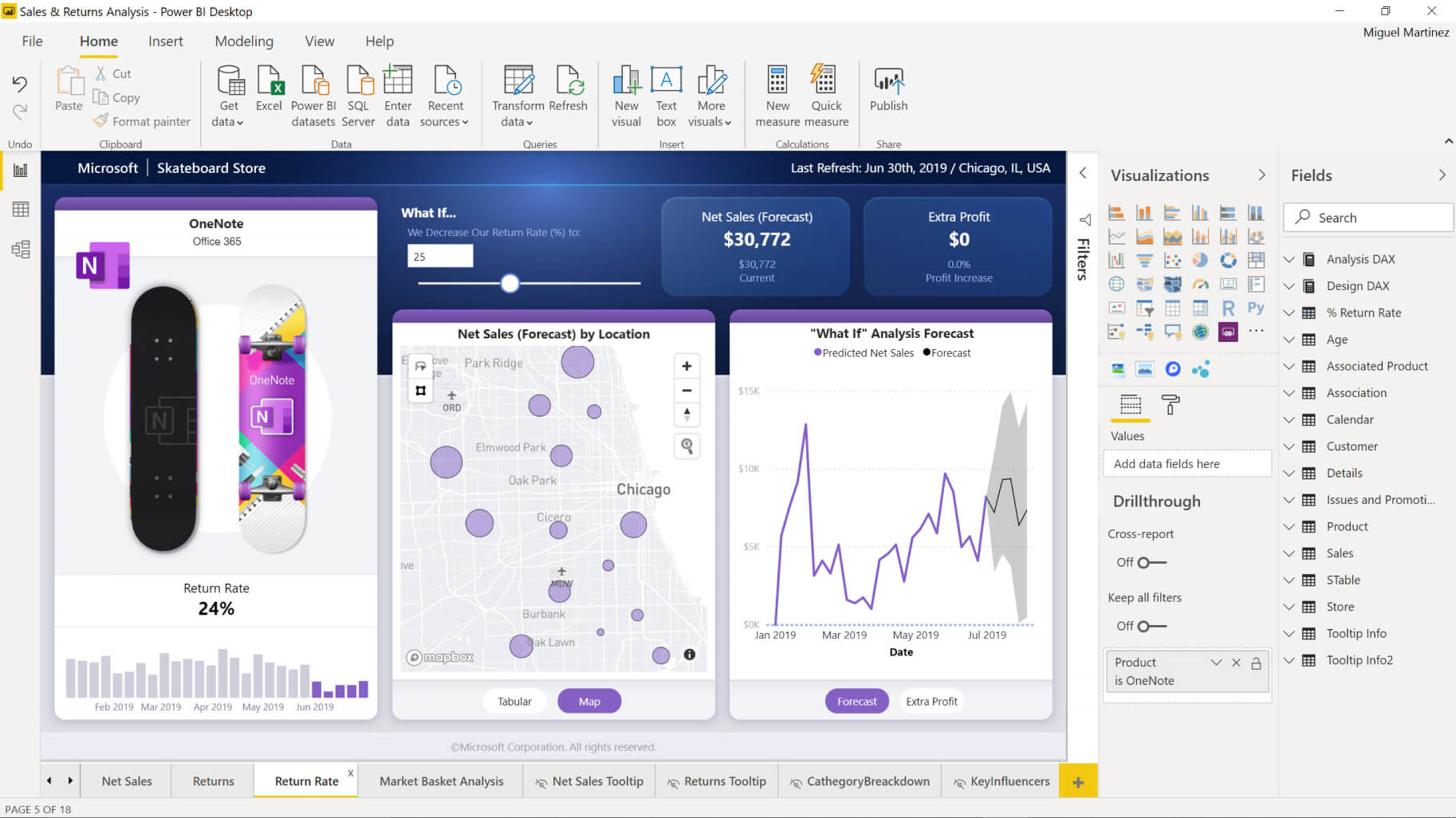
Welcome to Microsoft Power BI Fundamentals! This course will show you how to link and model data in Power BI and create visual reports that reveal data insights. By the end of this course, you will understand the following:
- The purposes and essential functions of the core Power BI components
- Using the Power BI desktop client and web app
- Connecting to a data source using either the Power BI desktop client or the web app
- Modeling data
- Creating reports and visualizations
This course is designed for professionals who connect to local or cloud-based data sources and then shape and combine data for analysis. They want to analyze business data, visualize insights, and share those insights with peers across the enterprise.
This course is designed for professionals pursuing the Microsoft Power BI Data Analyst (Exam PL-300) certification.
Subjects Covered

- Overview of Power BI
- What is Power BI?
- The Parts of Power BI
- Excel vs. Power BI
- How Power BI Works
- Installing Power BI Desktop
- New File Interface
- Power BI Settings
- Saving and Opening a File
- Building a Report
- Connecting and Shaping Data
- Extract, Transform, Load ETL
- Data Connections
- Connectivity Types
- Connecting to Excel
- Loading Data with the Navigator Window
- Viewing Loaded Data
- Refreshing Data
- Import Results
- Direct Query (e.g. SQL Server)
- Composite Models
- Choosing the Best Connectivity Type
- Managing Data Sources
- Transforming Data
- What is Power Query Editor?
- Parts of Power Query Editor
- Shaping Data
- Basic Transformations
- Changing Data Types
- Resolving Inconsistencies and Nulls
- Removing Duplicates
- Data Profiling
- Text, Numerical, and Date & Time Tools
- Date Tables and Rolling Calendars
- Index Columns
- Conditional Columns
- Columns from Examples
- Grouping and Aggregating
- Transpose, Pivot, and Unpivot
- Combining and Merging Queries
- Appending Queries
- Appending Files from a Folder
- Grouping Queries
- Creating a Data Model
- What is a Data Model?
- Database Normalization
- Fact and Dimension Tables
- Understanding Model View
- Properties Pane
- Primary and Foreign Keys
- Relational Model vs. Merged Queries
- Creating, Editing, and Managing Relationships
- Schemas
- Active and Inactive Relationships
- Cardinality in Model Relationships
- Connecting Multiple Fact Tables
- Filter Context and Flow
- Bi-Directional Filters
- Hiding Fields and Tables
- Understanding Column Tools
- Adjusting Data Types, Formats, and Categories
- Data Hierarchies
- Data Analysis Expressions (DAX)
- What is DAX?
- M vs. DAX
- Calculated Columns
- Measures
- Implicit vs. Explicit Measures
- Row Context vs. Filter Context
- Measure Tables
- DAX Syntax, Operators, and Function Categories
- Math & Stats Functions
- Counting Functions
- Logical Functions
- SWITCH Function
- Text Functions
- Date & Time Functions
- RELATED Functions
- CALCULATE Function
- DAX Measure Totals
- ALL Function
- FILTER Function
- Iterator Functions
- Time Intelligence
- Visualizations
- What is a Visualization?
- Understanding the Data and the Audience
- Dashboards
- The ReportView
- Creating a Visualization
- Calculations in the Value Well
- Table and Matrix
- Sorting Visuals
- Moving, Resizing, Zooming, and Tooltips
- Formatting Visualizations
- Changing Visualization Types
- Removing a Visualization
- Using Alignment
- Gauges, KPIs, and Cards
- Charts
- The Filter Pane
- Filtering Options
- Filtering the Page
- Using and Clearing Advanced Filters
- Donut Charts
- Conditional Formatting
- Maps
- Slicers
- Drill-Down and Drillthrough
- Editing Interactions
- Bookmarks
- Buttons
- Parameters
- Custom Tooltips
- Focus Mode
- Using Spotlight
- The Selection Pane
- Mobile Layout
Prerequisites
Before Taking this Class
Intermediate knowledge of Microsoft Excel and basic knowledge of Windows and web browsers.Setup Requirements
Software/Setup For this Class
Power BI Desktop
Onsite Training
Do you have five (5) or more people needing this class and want us to deliver it at your location?
Not sure what to expect from a live course?
We’ve gathered practical details about joining, materials, and support in one place.